Did you know a slow computer can lose up to 50% of its speed over time? This drop in performance is often due to temporary files, outdated software, and cluttered hard drives. Keeping your PC optimized is key for a faster and smoother experience.

By taking simple steps, you can make your computer run better. Start by cleaning up your computer and improving PC speed. This means getting rid of unnecessary files, updating your system, and removing unused programs. Doing these things will help boost computer performance and make your computer run smoothly.
Key Takeaways
- Regularly cleaning up temporary files can improve PC performance.
- Updating your operating system is crucial for security and speed.
- Removing unnecessary programs can help declutter your PC.
- Optimizing your hard drive can boost computer performance.
- Simple maintenance can extend the life of your computer.
Why Modern PCs Experience Performance Decline
Even the most powerful PCs can slow down over time. This makes users wonder what’s happening. It’s not just about old hardware; many factors play a role.
PC slowdowns come from technical, environmental, and usage factors. Knowing these helps keep your PC running smoothly.

The Science Behind Computer Slowdown
PCs slow down as they handle more data and programs. This is because:
- More processes run in the background, using CPU and RAM
- Files get fragmented, making them harder to access
- Old drivers and software don’t work well with new systems
Malware and viruses also slow PCs down by using system resources.
Recent Trends in PC Performance Issues
New trends have made PCs slower. Complex web apps and cryptocurrency malware strain PC resources. Also, high-quality graphics in games and videos require more from the GPU and storage.
- More GPU usage slows down the system
- More storage needs can cause disk space problems
Knowing these trends helps users keep their PCs fast and efficient.
Essential Tools for PC Maintenance in 2023
As we enter 2023, it’s key to have the best tools for PC maintenance. Keeping your computer in top shape is vital. The right tools are the first step to achieving this.
Built-in Windows Utilities You Should Be Using
Windows has many built-in tools to help maintain your PC. The Disk Cleanup tool is one of the most useful. It removes unnecessary files and frees up disk space. To use Disk Cleanup, just type it in the Windows search bar and follow the instructions.
The Task Manager is another valuable tool. It lets you monitor and manage programs and processes. You can find resource-hogging apps and close them if needed. To open Task Manager, press Ctrl + Shift + Esc on your keyboard.

Top-Rated Third-Party Optimization Software
While Windows tools are helpful, third-party software offers more. CCleaner and Advanced SystemCare are top choices. They help clean storage, manage startup programs, and optimize system settings for better performance.
When picking third-party software, choose reputable ones to avoid malware. Always check reviews and ratings before installing.
Using both Windows utilities and top third-party software keeps your PC running well in 2023.
How to Clean Your PC for Better Performance
Dust and digital clutter can slow down your PC; here’s how to tackle them.
Physical Cleaning Best Practices
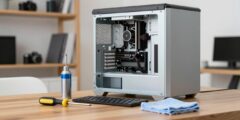
Keeping your PC clean is key to its performance and life. Dust can cause it to overheat, leading to slower speeds or even damage.
Dust Removal Techniques
Start by turning off and unplugging your PC. Use compressed air to blow out dust from vents and fans. Be careful not to spray too close to parts.
- Use a can of compressed air to clean out dust.
- Gently brush away dust with a soft-bristled brush.
- Avoid using vacuum cleaners, as they can generate static electricity.
Cleaning Peripherals and Components
Don’t forget to clean peripherals and components too. Use a damp cloth on keyboards, mice, and monitors. For inside parts, use an anti-static wrist strap to avoid damage.

Digital Cleaning Fundamentals
Digital cleaning is as vital as physical cleaning. It means organizing files, removing temporary files, and uninstalling unused apps.
File Organization Strategies
Organizing your files boosts your PC’s speed. Make folders, sort files, and use cloud storage for less-used documents.
| File Type | Storage Location | Action |
|---|---|---|
| Documents | Cloud Storage | Store frequently accessed documents locally. |
| Videos, Images | External Hard Drive | Store large files externally to free up space. |
| Temporary Files | Local Disk | Regularly clean up temporary files. |
Temporary File Management
Temporary files can take up a lot of space. Use the Disk Cleanup tool in Windows to get rid of them and speed up your PC.
- Open Disk Cleanup by searching for it in the Start menu.
- Select the drive you want to clean.
- Check the boxes next to the types of files you want to delete.
- Click OK to remove the selected files.
By following these cleaning tips, you can make your PC run better and last longer.
Reclaiming Valuable Disk Space
Disk space is limited, and freeing it up can make your PC run better. As we use our computers, disks fill up with files and programs. This can slow down your PC, so cleaning up regularly is key.

Advanced Disk Cleanup Methods
To really free up disk space, you need more than basic cleaning. Advanced disk cleanup means getting rid of temporary files and system items you don’t need. The Disk Cleanup tool in Windows is a good start. It lets you delete temporary files and empty the Recycle Bin.
For a deeper clean, try third-party disk cleanup software. These tools can find and remove more files than the built-in tool. They can even find duplicate files and leftovers from uninstalled programs.
Storage Analyzer Tools: Finding Hidden Space Hogs
It’s not always easy to see what’s taking up space. Storage analyzer tools help you see your disk usage clearly. They show you large files and folders you can remove or move.
These tools help you find files taking up too much space. This not only frees up space but also helps organize your files better.
Keeping your disk space free is an ongoing task. Regular cleaning and using storage analyzer tools keep your PC running smoothly. This ensures you have enough room for your files and programs.
Streamlining Your System Startup
Improving your system startup can greatly enhance your computer’s speed and response. A well-optimized startup process shortens the time it takes for your PC to start. It also boosts its performance overall.
Identifying Resource-Intensive Startup Applications
To optimize your system startup, first find out which apps use the most resources at startup. Here’s how:
- Open the Task Manager by pressing Ctrl + Shift + Esc.
- Navigate to the “Startup” tab.
- Sort the applications by their “Startup impact” to identify resource-intensive programs.
Common resource-intensive applications include video editing software, cloud storage services, and certain antivirus programs. Knowing which apps slow down your startup lets you decide which to keep or disable.

Configuring Optimal Startup Settings
After finding out which apps slow you down, it’s time to set up your startup settings for better performance. Here are some tips:
- Turn off any apps you don’t need to start up automatically.
- Think about upgrading your RAM or switching to a faster storage drive like an SSD to boost performance.
- Keep checking and updating your startup apps to make sure they’re still needed.
| Startup Setting | Description | Impact on Performance |
|---|---|---|
| Disabling Unnecessary Apps | Prevents non-essential apps from launching at startup | High |
| Upgrading RAM | Increases the amount of memory available for applications | High |
| Switching to SSD | Replaces traditional hard drives with faster SSDs | Very High |
By following these steps, you can greatly speed up your computer’s startup process and improve its performance. Keeping up with startup apps is crucial for a fast and responsive PC.
Browser Optimization: The Key to Faster Web Experience
To enjoy a smoother and quicker web experience, browser optimization is key. Your web browser is one of the most frequently used applications on your PC. Its performance can significantly impact your overall online experience. Optimizing your browser not only enhances your browsing speed but also improves security and overall system performance.

Clearing Cache and Cookies Effectively
Clearing cache and cookies is a fundamental step in browser optimization. Over time, your browser accumulates a significant amount of temporary data. This includes cache and cookies, which can slow down your browsing experience. Here are some steps to clear cache and cookies effectively:
- Open your browser settings or preferences.
- Navigate to the privacy or security section.
- Select the option to clear browsing data.
- Choose the types of data you want to clear, including cache and cookies.
- Select the time range for which you want to clear data.
- Confirm your selection to clear the data.
Regularly clearing cache and cookies not only improves your browser’s performance. It also enhances your privacy by removing stored data that could be used to track your browsing activities.
Managing Browser Extensions for Maximum Performance
Browser extensions can significantly enhance your browsing experience by adding new functionalities. However, having too many extensions or poorly optimized ones can slow down your browser. Here are some tips for managing browser extensions effectively:
- Review Installed Extensions: Regularly review the extensions installed on your browser and remove any that you no longer use or need.
- Update Extensions: Keep your extensions updated to ensure you have the latest features and security patches.
- Disable Unnecessary Extensions: Disable any extensions that you don’t use frequently to prevent them from consuming resources.
- Use Lightweight Alternatives: When possible, opt for lightweight extensions that are designed to be less resource-intensive.
By effectively managing your browser extensions, you can maintain a faster and more efficient browsing experience. This contributes to overall PC performance enhancement.
Critical System Updates and Driver Maintenance
To keep your computer running smoothly, it’s key to keep up with system updates and driver maintenance. Regular updates boost security and performance.
System updates fix bugs, add new features, and sometimes bring new functions. Keeping drivers up-to-date is also essential for your hardware to work well.
Latest Windows Update Features for Performance
Microsoft often releases updates for Windows to improve performance. These updates make your PC faster and more responsive. They focus on quicker startup times, better multitasking, and smarter resource use.
For example, recent updates have made Windows Search faster and more accurate. They’ve also made it easier to download and install updates, saving time and bandwidth.

Driver Update Strategies for Optimal Hardware Function
Keeping your drivers updated is crucial for your PC’s performance. Old drivers can cause problems, slow things down, and even crash your system. Here are some ways to update drivers:
- Using the Device Manager to check for updates.
- Visiting the manufacturer’s website to download the latest drivers.
- Utilizing third-party driver update software.
Each method has its benefits. The best approach is often a mix of these. For instance, the Device Manager is handy for most updates. But, visiting the manufacturer’s website can get you the latest drivers.
By focusing on driver maintenance and keeping your system updated, you can greatly improve your PC’s efficiency and performance.
Advanced PC Optimization Techniques for Power Users
For those who want to get the most out of their PC, advanced techniques can help a lot. These methods are more than just basic upkeep. They offer a deeper way to tune your system, leading to big performance boosts.
Registry Cleaning: Benefits and Risks Analysis
Registry cleaning is a hot topic among PC fans. It can make your system run better and be more stable. But, messing with the registry can also cause problems.
The good things about registry cleaning are:
- It can remove old and bad entries
- It might make your system more stable
- It could even make your PC run faster
But, there are downsides too:
- You might accidentally delete important entries
- It could make your system unstable
- Some registry cleaners might actually harm your PC
To avoid these problems, use trusted registry cleaners. Also, make a system restore point before you start.
Modern Disk Defragmentation Approaches
Disk defragmentation is key for old hard drives. Solid-state drives (SSDs) don’t need it as much, but traditional HDDs still do.
Today’s disk defragmentation methods include:
| Method | Description | Benefits |
|---|---|---|
| Automatic Defragmentation | A Windows feature that runs in the background | It’s easy to use and keeps your drive in check |
| Third-Party Defragmentation Tools | These tools offer more features and control | They let you customize the defragmentation process and have extra tools |
Customizing Visual Effects for Performance Gains
Visual effects can slow down your PC, especially on older hardware. By tweaking these effects, you can find a good balance between looks and speed.
To change visual effects in Windows:
- Press Windows key + Pause/Break to open System Properties
- Click on “Advanced system settings”
- Under Performance, click “Settings”
- Choose how you want your visual effects to be, from “Let Windows choose” to “Adjust for best performance”
By using these advanced techniques, power users can see big improvements in their PC’s performance. This makes their computing experience better and more efficient.
Security Cleanup: Removing Performance-Draining Threats
Malware and bloatware can slow down your PC. Cleaning them up is key to keeping your computer running smoothly. It’s important to regularly remove these threats.
Latest Malware Removal Tools and Techniques
Malware can hurt your computer’s speed and security. Using the newest tools to remove malware is crucial. Here are some top tools:
- Norton Antivirus: Known for its comprehensive malware detection and removal capabilities.
- Malwarebytes: Specializes in detecting and removing malware that other antivirus software might miss.
- Kaspersky Antivirus: Offers robust protection against various types of malware, including ransomware and Trojans.
Keep your antivirus software updated and run full system scans often. This helps keep your PC free from malware.
Identifying and Uninstalling Bloatware
Bloatware is software that comes with your computer and can slow it down. It’s important to find and remove bloatware to boost your PC’s speed.
| Software | Description | Action |
|---|---|---|
| Adobe Flash Player | Often considered bloatware due to security vulnerabilities and decreasing usage. | Uninstall if not necessary |
| Manufacturer-specific software | Pre-installed software that may not be essential for your daily use. | Review and uninstall unnecessary programs |
| Free trials or demos | Software that is trial-based and may be consuming resources. | Uninstall if not in use |
By getting rid of unnecessary software and keeping your system free from malware, you can make your PC run better.
Hardware Upgrade Options for Dramatic Performance Boosts
Upgrading your computer’s hardware can make it much faster. While software tweaks are important, adding new hardware can really boost your PC’s power.
RAM Upgrades: Cost vs. Performance Analysis
Adding more RAM is a simple way to improve your PC. It lets your system run more apps at once without slowing down. The price of RAM depends on its type and how much you get.
Going from 8GB to 16GB can cost between $30 to $60. This depends on what kind of RAM you choose.
| RAM Capacity | Approximate Cost | Performance Improvement |
|---|---|---|
| 8GB to 16GB | $30-$60 | Significant improvement for multitasking |
| 16GB to 32GB | $60-$120 | Noticeable improvement for heavy users and gamers |
A top tech site says, “Upgrading RAM is a simple and affordable way to make an old PC feel new again.” (
“Adding 16GB or more of RAM can really improve how fast your system feels, especially when you’re using lots of memory.”
)
SSD Migration: The Single Best Performance Upgrade
Switching to an SSD is the best way to make your PC faster. SSDs are much quicker than traditional hard drives, making your PC start up and apps load faster.
Key Benefits of SSD Migration:
- Faster boot times
- Quick application loading
- Improved overall system responsiveness
Other Cost-Effective Hardware Improvements
There are other ways to make your PC faster without spending a lot. These include:
- Upgrading your graphics card for better gaming
- Switching to an SSHD for faster storage
- Making sure your PC stays cool to avoid slowdowns
A hardware expert notes, “A new graphics card can make your PC last longer, especially for gamers who want to play the latest games at high settings.” (
“For gamers, a new graphics card can really improve your gaming experience, making it smoother and faster.”
)
Conclusion: Maintaining Your PC’s Performance Long-Term
To keep your PC running smoothly, regular maintenance is key. By following the steps in this article, you can keep your PC fast. Cleaning up, optimizing, and maintaining your PC will make it more efficient.
Begin by setting up regular disk cleanups and space management. This helps keep your PC tidy and prevents clutter. Also, make sure your browser is clean by clearing cache and cookies. Managing browser extensions can also speed up your computer.
By sticking to these maintenance tips, you’ll have a faster, more efficient PC for years. This not only boosts efficiency but also improves your overall computing experience.